Documentation Index
Fetch the complete documentation index at: https://mintlify.com/tanstack/form/llms.txt
Use this file to discover all available pages before exploring further.
This page introduces the basic concepts and terminology used in @tanstack/react-form. Familiarizing yourself with these concepts will help you better understand and work with the library.
You can customize your form by creating configuration options with the formOptions function. These options can be shared between multiple forms.
interface User {
  firstName: string
  lastName: string
  hobbies: Array<string>
}
const defaultUser: User = { firstName: '', lastName: '', hobbies: [] }

const formOpts = formOptions({
  defaultValues: defaultUser,
})
useForm hook.
const form = useForm({
  defaultValues: {
    firstName: '',
    lastName: '',
    hobbies: [],
  },
  onSubmit: async ({ value }) => {
    // Do something with form data
    console.log(value)
  },
})
Field
A Field represents a single form input element. Fields are created using the form.Field component provided by the Form instance.
<form.Field
  name="firstName"
  children={(field) => (
    <>
      <input
        value={field.state.value}
        onBlur={field.handleBlur}
        onChange={(e) => field.handleChange(e.target.value)}
      />
    </>
  )}
/>
If you run into ESLint issues with children as props, configure your linting rules:"rules": {
"react/no-children-prop": [
true,
{
"allowFunctions": true
}
],
}
Field State
Each field has its own state, which includes its current value, validation status, error messages, and other metadata.
const {
  value,
  meta: { errors, isValidating },
} = field.state
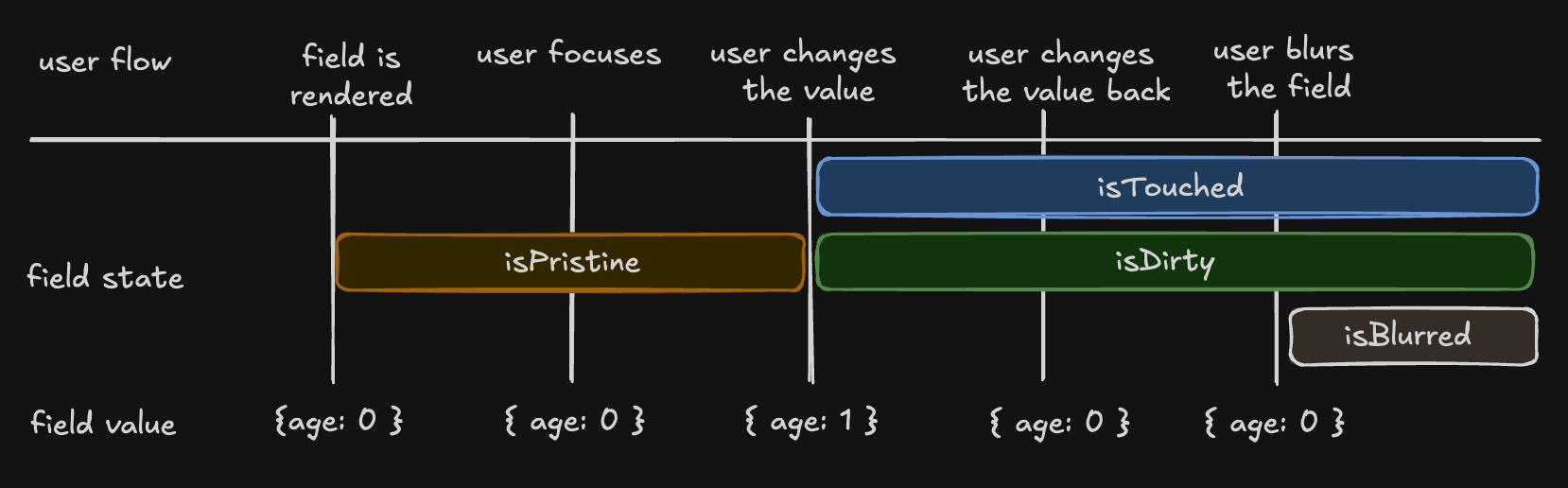
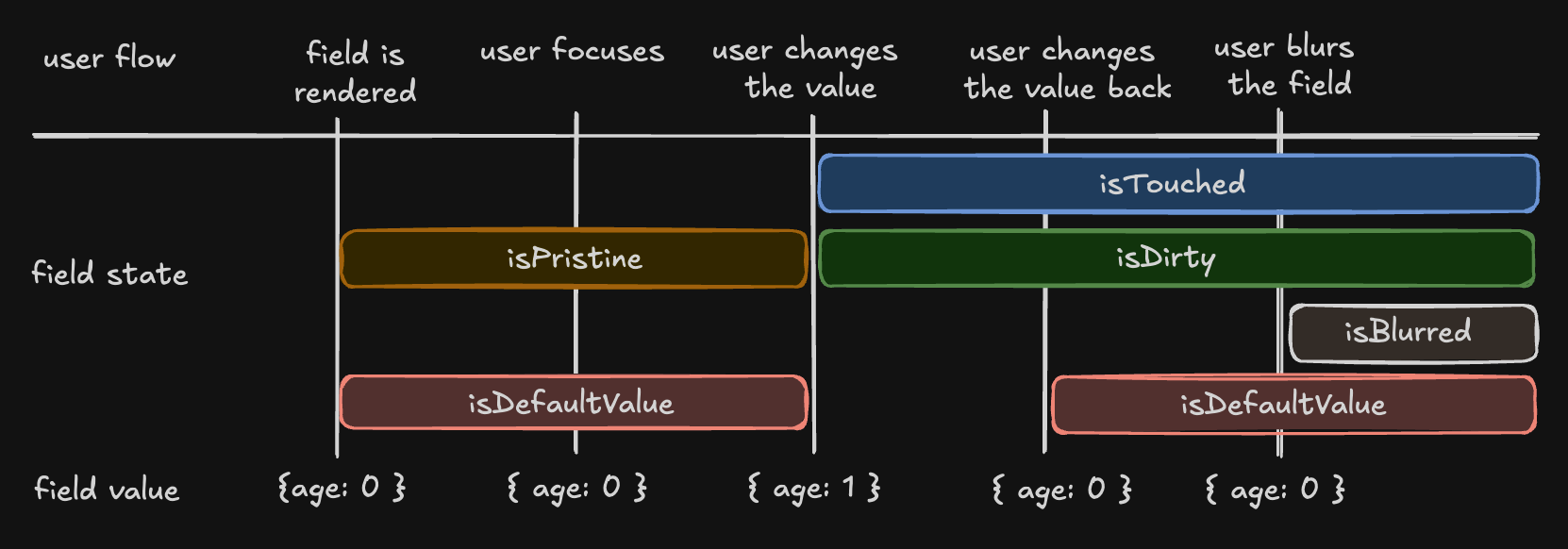
- isTouched:
true once the user changes or blurs the field
- isDirty:
true once the field’s value is changed, even if reverted to default (opposite of isPristine)
- isPristine:
true until the user changes the field’s value (opposite of isDirty)
- isBlurred:
true once the field loses focus
- isDefaultValue:
true when the field’s current value is the default value
const { isTouched, isDirty, isPristine, isBlurred } = field.state.meta
Understanding ‘isDirty’ in Different Libraries
Field API
The Field API is an object passed to the render prop function when creating a field. It provides methods for working with the field’s state.
<input
  value={field.state.value}
  onBlur={field.handleBlur}
  onChange={(e) => field.handleChange(e.target.value)}
/>
Validation
TanStack Form provides both synchronous and asynchronous validation out of the box.
<form.Field
  name="firstName"
  validators={{
    onChange: ({ value }) =>
      !value
        ? 'A first name is required'
        : value.length < 3
          ? 'First name must be at least 3 characters'
          : undefined,
    onChangeAsync: async ({ value }) => {
      await new Promise((resolve) => setTimeout(resolve, 1000))
      return value.includes('error') && 'No "error" allowed in first name'
    },
  }}
  children={(field) => (
    <>
      <input
        value={field.state.value}
        onBlur={field.handleBlur}
        onChange={(e) => field.handleChange(e.target.value)}
      />
      {!field.state.meta.isValid && (
        <em>{field.state.meta.errors.join(',')}</em>
      )}
    </>
  )}
/>
Validation with Schema Libraries
TanStack Form supports the Standard Schema specification:
import { z } from 'zod'

const userSchema = z.object({
  age: z.number().gte(13, 'You must be 13 to make an account'),
})

function App() {
  const form = useForm({
    defaultValues: {
      age: 0,
    },
    validators: {
      onChange: userSchema,
    },
  })
  return (
    <div>
      <form.Field
        name="age"
        children={(field) => {
          return <>{/* ... */}</>
        }}
      />
    </div>
  )
}
import * as v from 'valibot'

const userSchema = v.object({
  age: v.pipe(v.number(), v.minValue(13, 'You must be 13 to make an account')),
})

function App() {
  const form = useForm({
    defaultValues: {
      age: 0,
    },
    validators: {
      onChange: userSchema,
    },
  })
  return (
    <div>
      <form.Field name="age" />
    </div>
  )
}
import * as yup from 'yup'

const userSchema = yup.object({
  age: yup.number().min(13, 'You must be 13 to make an account'),
})

function App() {
  const form = useForm({
    defaultValues: {
      age: 0,
    },
    validators: {
      onChange: userSchema,
    },
  })
  return (
    <div>
      <form.Field name="age" />
    </div>
  )
}
import { type } from 'arktype'

const userSchema = type({
  'age>=': [13, '@must be 13 to make an account'],
})

function App() {
  const form = useForm({
    defaultValues: {
      age: 0,
    },
    validators: {
      onChange: userSchema,
    },
  })
  return (
    <div>
      <form.Field name="age" />
    </div>
  )
}
Reactivity
TanStack Form offers various ways to subscribe to form and field state changes using the useStore hook and the form.Subscribe component.
const firstName = useStore(form.store, (state) => state.values.firstName)

// Or with form.Subscribe
<form.Subscribe
  selector={(state) => [state.canSubmit, state.isSubmitting]}
  children={([canSubmit, isSubmitting]) => (
    <button type="submit" disabled={!canSubmit}>
      {isSubmitting ? '...' : 'Submit'}
    </button>
  )}
/>
Always provide a selector to useStore to avoid unnecessary re-renders:// ✅ Correct use
const firstName = useStore(form.store, (state) => state.values.firstName)
const errors = useStore(form.store, (state) => state.errorMap)
// ❌ Incorrect use - causes unnecessary re-renders
const store = useStore(form.store)
Listeners
Listeners allow you to react to specific triggers and dispatch side effects.
<form.Field
  name="country"
  listeners={{
    onChange: ({ value }) => {
      console.log(`Country changed to: ${value}, resetting province`)
      form.setFieldValue('province', '')
    },
  }}
/>
Array Fields
Array fields allow you to manage a list of values within a form. Use the mode="array" prop to create an array field.
<form.Field
  name="hobbies"
  mode="array"
  children={(hobbiesField) => (
    <div>
      <h3>Hobbies</h3>
      <div>
        {!hobbiesField.state.value.length
          ? 'No hobbies found.'
          : hobbiesField.state.value.map((_, i) => (
              <div key={i}>
                <form.Field
                  name={`hobbies[${i}].name`}
                  children={(field) => (
                    <div>
                      <label htmlFor={field.name}>Name:</label>
                      <input
                        id={field.name}
                        name={field.name}
                        value={field.state.value}
                        onBlur={field.handleBlur}
                        onChange={(e) => field.handleChange(e.target.value)}
                      />
                      <button
                        type="button"
                        onClick={() => hobbiesField.removeValue(i)}
                      >
                        Remove
                      </button>
                    </div>
                  )}
                />
              </div>
            ))}
      </div>
      <button
        type="button"
        onClick={() =>
          hobbiesField.pushValue({
            name: '',
            description: '',
          })
        }
      >
        Add hobby
      </button>
    </div>
  )}
/>
<button
  type="reset"
  onClick={(event) => {
    event.preventDefault()
    form.reset()
  }}
>
  Reset
</button>
type="button":
<button
  type="button"
  onClick={() => {
    form.reset()
  }}
>
  Reset
</button>